
Pioneer PxLink App – Initial Receiver Setup & iPhone Pairing Guide


Applicable U.S. Models (As of April 15th, 2026)
DMH-WT5000NEX - DMH-WT6000NEX - DMH-WT8000NEX
Overview
Pioneer PxLink is Pioneer’s companion smartphone application designed to control and customize supported functions of compatible Pioneer receivers directly from a connected smartphone.
It provides streamlined access to audio controls, source selection, display personalization, and connection status without navigating multiple receiver menus.
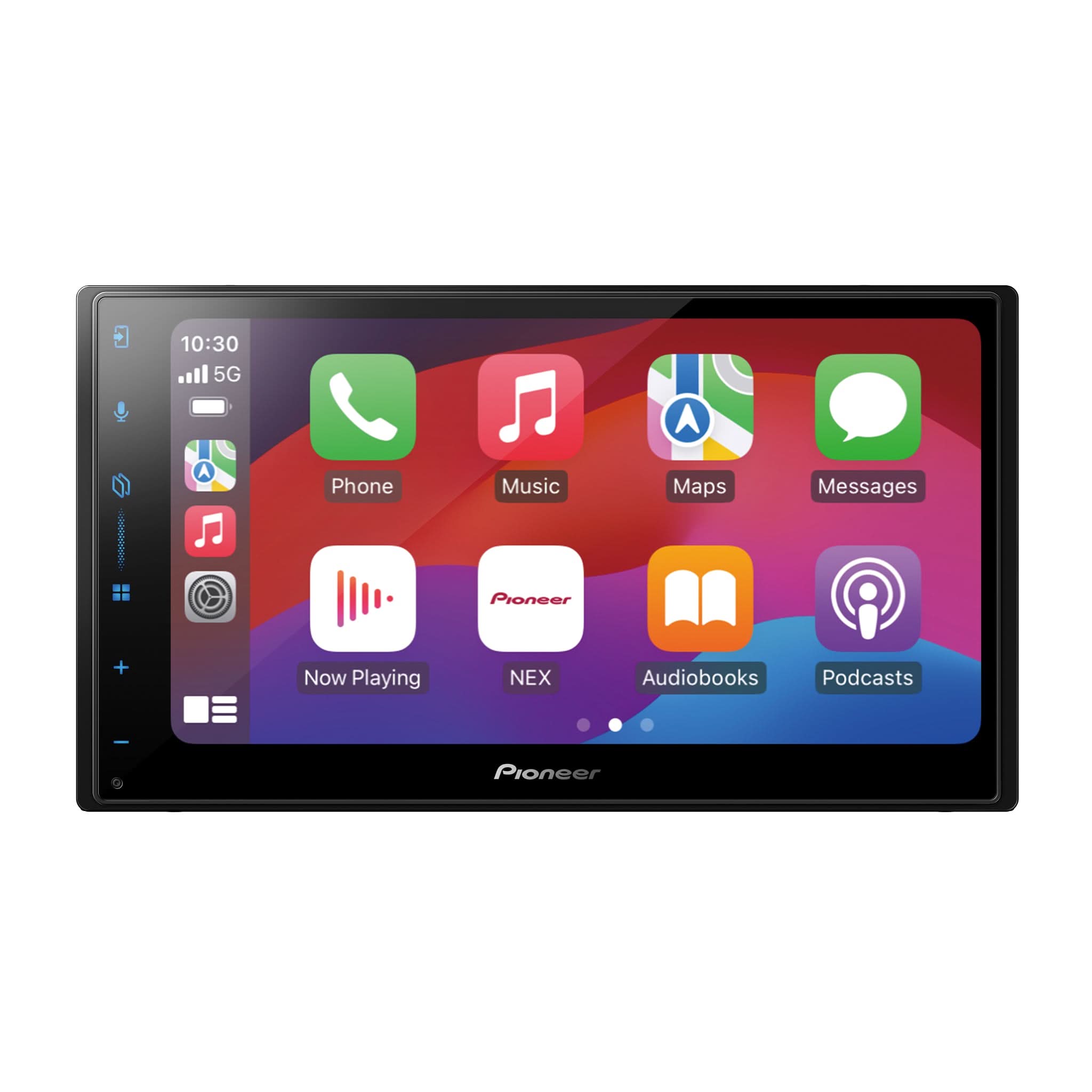
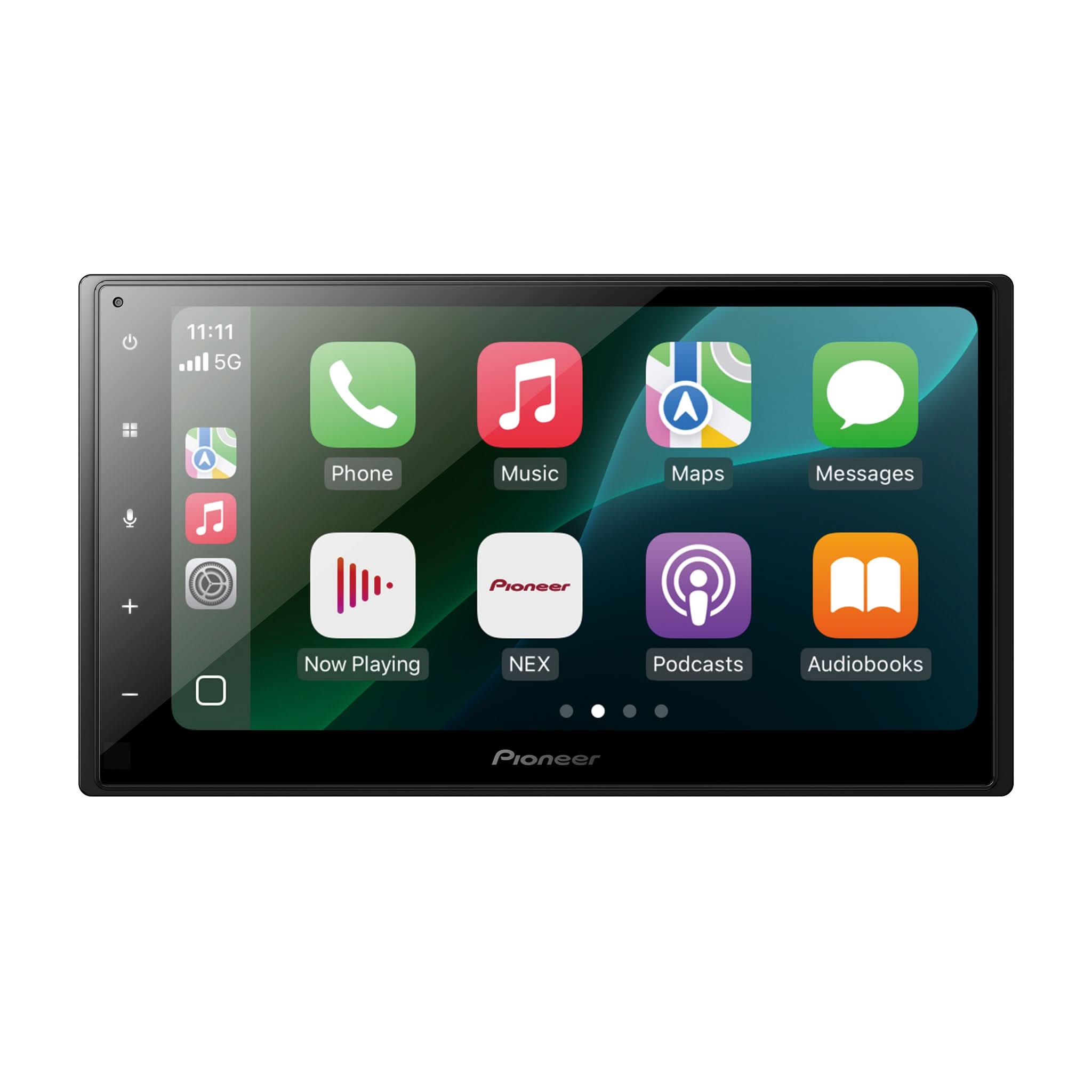
When Apple CarPlay® or Android Auto™ is active, Pioneer PxLink can mirror and control supported receiver functions.
Pioneer PxLink also supports shortcut customization, background personalization, split-screen operation, and dual-screen control, allowing the smartphone to function as a secondary control interface.
OTA firmware update notifications and supported updates are delivered through the app when available.
Pioneer PxLink operates only when connected to the receiver and does not function independently.
Complete Initial Setup & Pairing Procedure
(Apple iPhone – Verified Sequence)
Before Beginning
• Park the vehicle in a well-ventilated area if running
• Engage the parking brake
• Complete setup while stationary
Initial pairing requires multiple prompts. Do not attempt setup while driving.
Part 1 – Initial Out-of-Box Receiver Setup
-
Power on the receiver.
-
Select Program Language → Select English or your preferred language, then tap → .
-
Select Speaker Mode Settings:
• Network Mode
• Standard Mode (most common) → OK -
Safety warning displays → Touch OK.

-
The PxLink Companion App Information screen displays:
• Connect
• Skip

If the Pioneer PxLink app is already installed on the iPhone and your logged in, pairing may begin automatically.
No manual selection of Connect or Skip is required during iPhone setup. On the receiver, leave this page displaying during the entire PxLink set up process. Apon completion, Wireless CarPlay with be active and displaying on the receiver.
Part 2 – Prepare the iPhone
-
Open Settings > Bluetooth.
-
Turn Bluetooth ON.
-
Ensure Wi-Fi is ON.
-
Remain in the Bluetooth menu and wait for the receiver’s model name to appear, then select it.
Part 3 – Bluetooth Pairing
When the receiver pairing prompt appears:

-
On the iPhone, when the pairing request appears, tap Pair.
-
On the receiver, select Yes.
-
On the iPhone, “Allow Contacts and Favorites Sync” → Tap Allow.
Bluetooth pairing is now complete.
Part 4 – Apple CarPlay Authorization

-
On the iPhone, “Connect to CarPlay” displays → Tap Connect.
-
On the receiver, select Yes when prompted to use Apple CarPlay.
-
On the receiver, “To use PxLink, launch PxLink from your smartphone.” → Touch OK.
-
On the iPhone, “Allow [Receiver Model] to check for CarPlay apps” → Tap Allow.
Part 5 – PxLink Launch & Wi-Fi Connection
• Pioneer PxLink opens automatically on the iPhone.
• Receiver displays “To use PxLink.” → Touch OK.
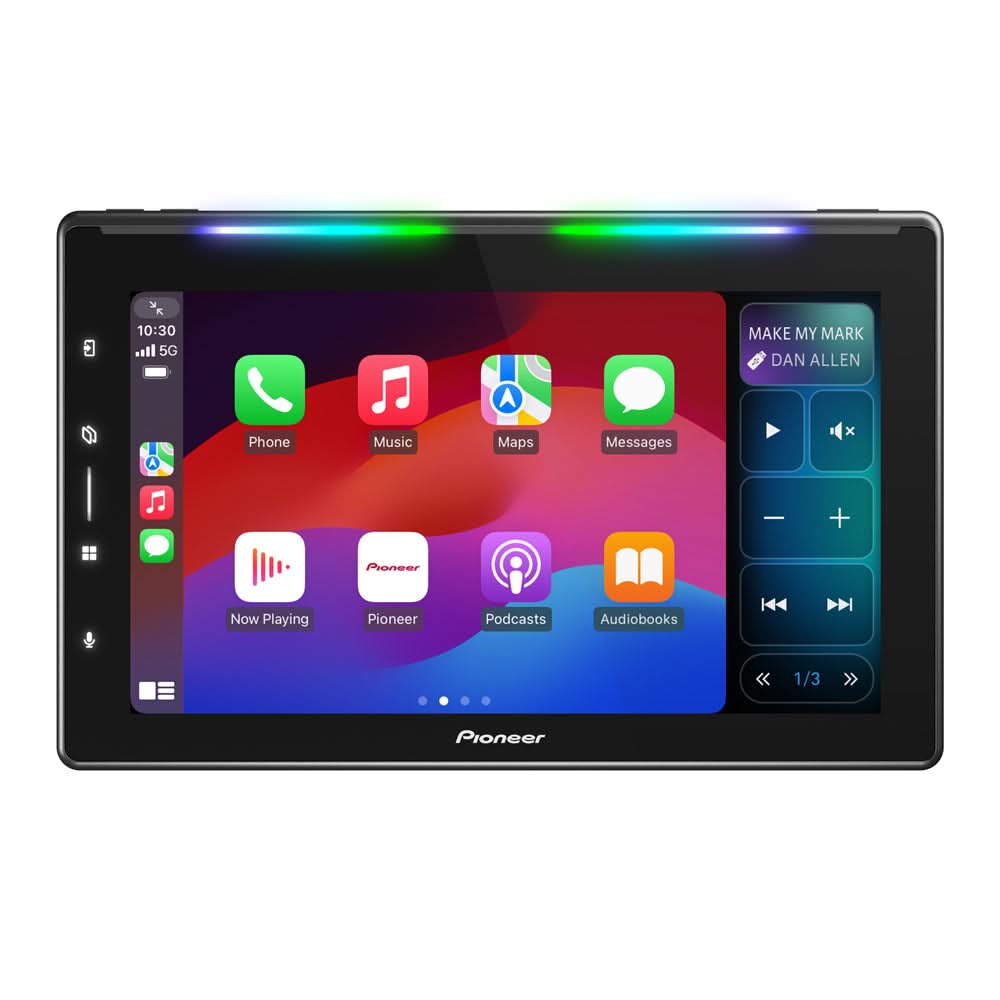
• CarPlay Home screen appears on the receiver.
• On the iPhone, “Bluetooth LE Pairing Connection Request” → Tap Pair.
• Receiver displays “Wi-Fi connecting.”

Wi-Fi connection occurs automatically. No manual Wi-Fi selection is required.
The receiver launches into the CarPlay Home screen while PxLink completes connection in the background.
Typical total setup time is approximately 1 - 2 minutes.
Connection Confirmation
When setup completes:

• The receiver displays “PxLink connection established (iPhone).”
• On the iPhone, safety banner displays → Touch OK.
• Pioneer PxLink shows Connected status at the top of the app.
Connection is complete when:
• Receiver confirms active PxLink connection
• Volume or source control responds from the phone
Bluetooth and Wi-Fi must remain enabled for continued operation.
PxLink App Shortcut Key Examples

Pioneer PxLink allows direct access to supported receiver functions from the smartphone interface.
Key capabilities include:
• Source selection and control
• Audio preset and EQ adjustment
• Volume control
• Shortcut customization for frequently used functions
• Background personalization
• Split-screen operation
• Dual-screen control, allowing the smartphone to function as a secondary control interface
• Supported vehicle information and climate functions when used with compatible third-party CAN bus interface modules
OTA Firmware Update Example
If new firmware is available, the receiver will prompt for update.

When performing firmware updates:
• Vehicle must be safely parked
• Parking brake should be applied
• Engine should remain running in a well-ventilated area
• Stable Wi-Fi or mobile data required
Firmware cannot be downgraded once updated.
Android Auto Notice (Android Devices Only)
Android Auto must be disconnected:
• During first-time PxLink pairing
• During firmware updates
(This does not apply to iPhone setup.)
Additional Support
For official Pioneer PxLink help documentation and feature explanations, visit:
Pioneer PxLink Help Website – Official Support
https://jpn.pioneer/ja/app/pxlink/help/en/
Safety & Usage Notice
Only use Pioneer PxLink when it is safe and legal to do so. Always prioritize non-distracted driving.
Ensure the smartphone is securely mounted and does not interfere with vehicle operation or visibility.
Compatibility & Trademark Disclaimers
Android Auto™
Android Auto is a trademark of Google LLC.
Apple CarPlay®
Apple CarPlay is a trademark of Apple Inc., registered in the U.S. and other countries.
Bluetooth®
Bluetooth is a trademark of Bluetooth SIG, Inc.
PIONEER
PIONEER and the Pioneer logo are registered trademarks of Pioneer Corporation.